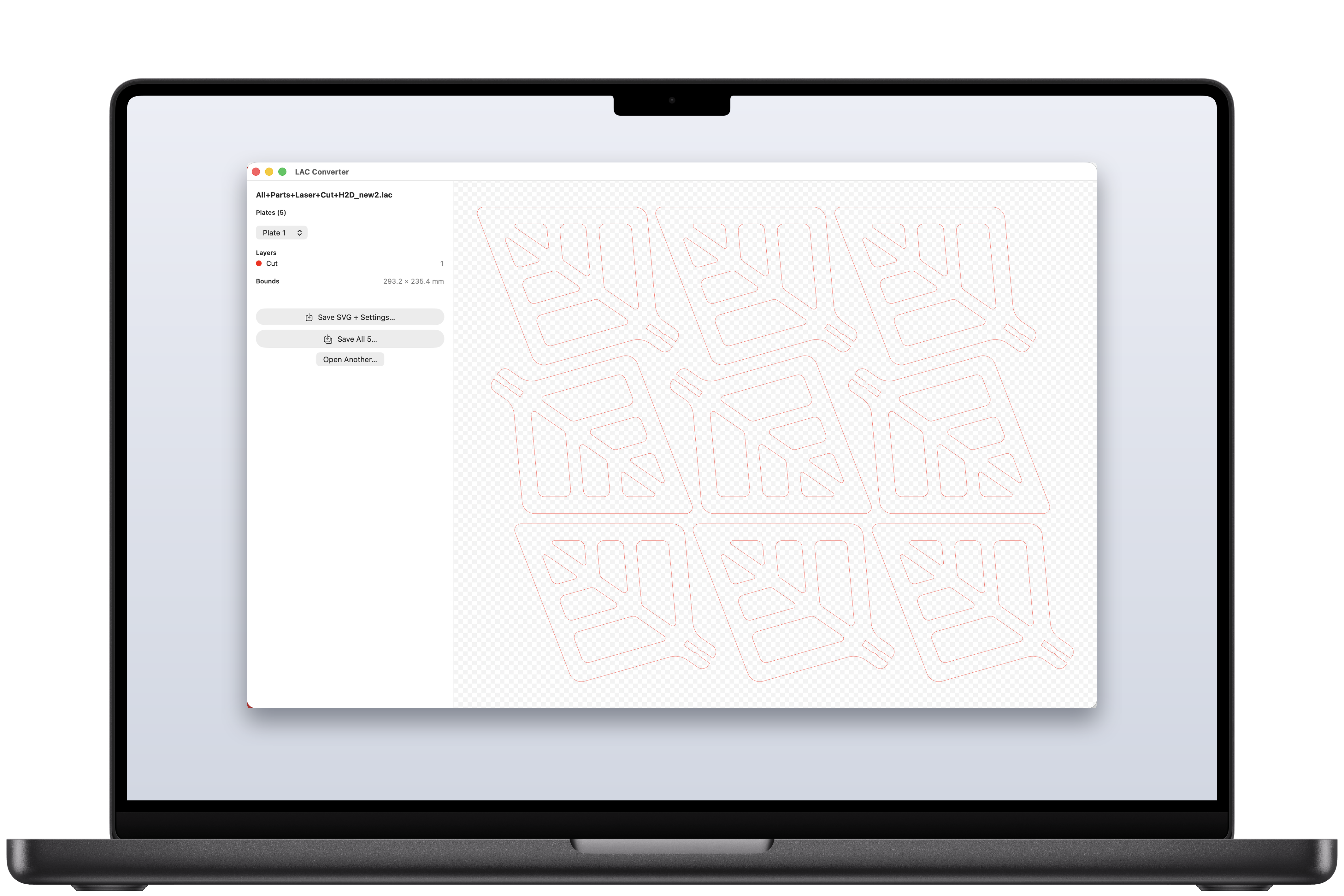
Layered SVG output
Cut, score, engrave-line, and engrave-fill each land on their own layer with the right colors — ready to assign in xTool Creative Space, LightBurn, or any cutter you already use.
Free macOS app · v0.1.0
.lac files in any cutter.Convert Bambu Studio's laser project format to a layered SVG with a settings sidecar so you can engrave uploaded Makerworld designs on whatever laser you already own.
Makerworld is full of beautiful laser-cut designs but the files come
as .lac, a Bambu-only format. To open one you're expected to
install Bambu Studio (1 GB+) and work through a complex UI. If you
have an xTool, WeCreate, Creality Falcon, a classic CO₂, or a vinyl
cutter, you're locked out of an entire library of free designs.
LAC Converter unzips the project, walks the canvas tree, and emits clean SVG with layers preserved by laser operation type. It also writes a sidecar with the recommended power, speed, and pass count so you can transfer Bambu's tested settings into your cutter's software without guessing.
Cut, score, engrave-line, and engrave-fill each land on their own layer with the right colors — ready to assign in xTool Creative Space, LightBurn, or any cutter you already use.
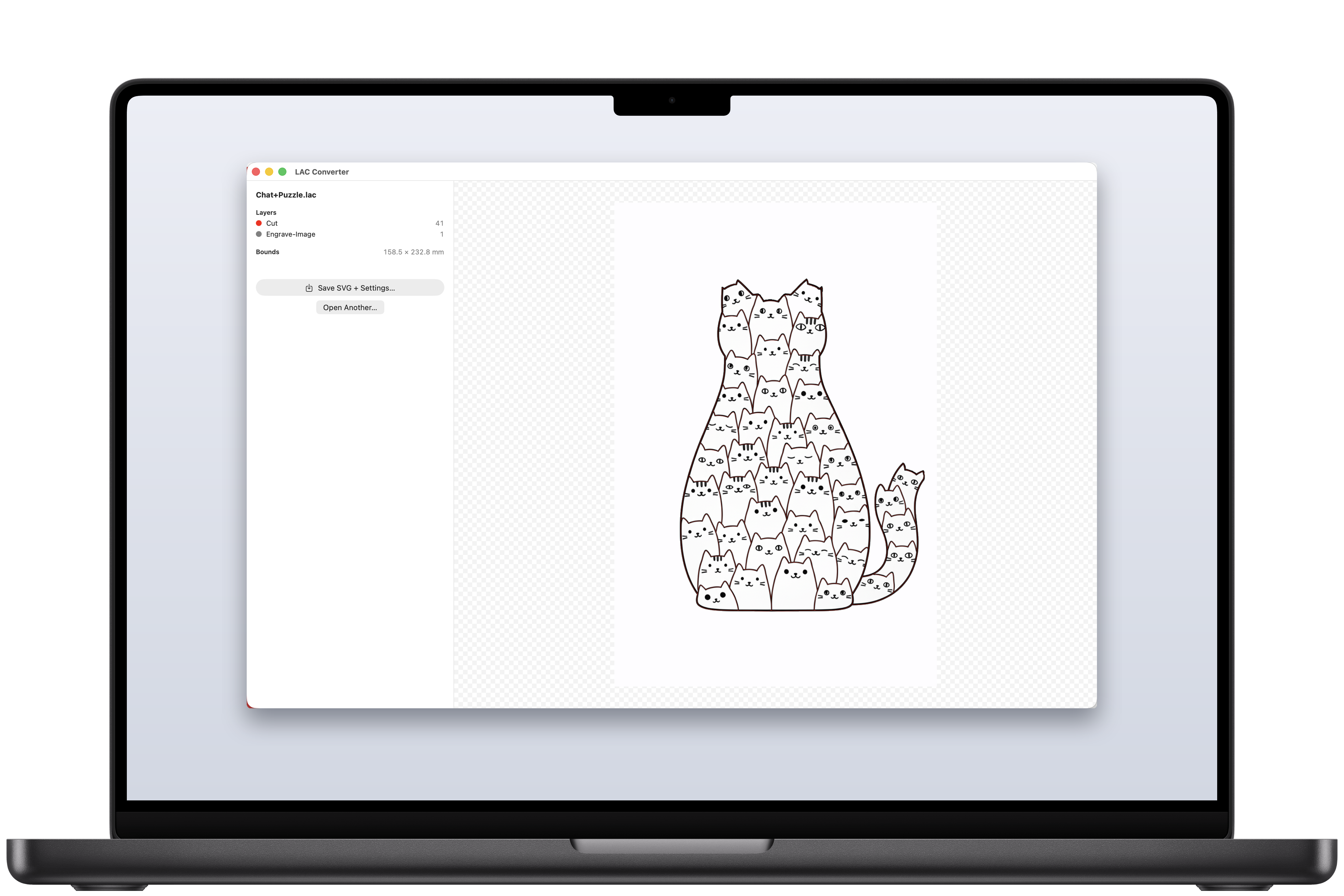
Every export drops a plain-text sidecar listing material, machine, power, speed, passes, and air assist for each layer — Bambu's recommended profile, copy/paste straight in.
Files with multiple plates or canvases convert to one SVG per plate and you can save them all in a single click. Multi-canvas H2D files just work.
You shouldn't need to install a 1 GB+ slicer just to read a vector file. LAC Converter is a 3.6 MB native macOS app and runs fully offline.
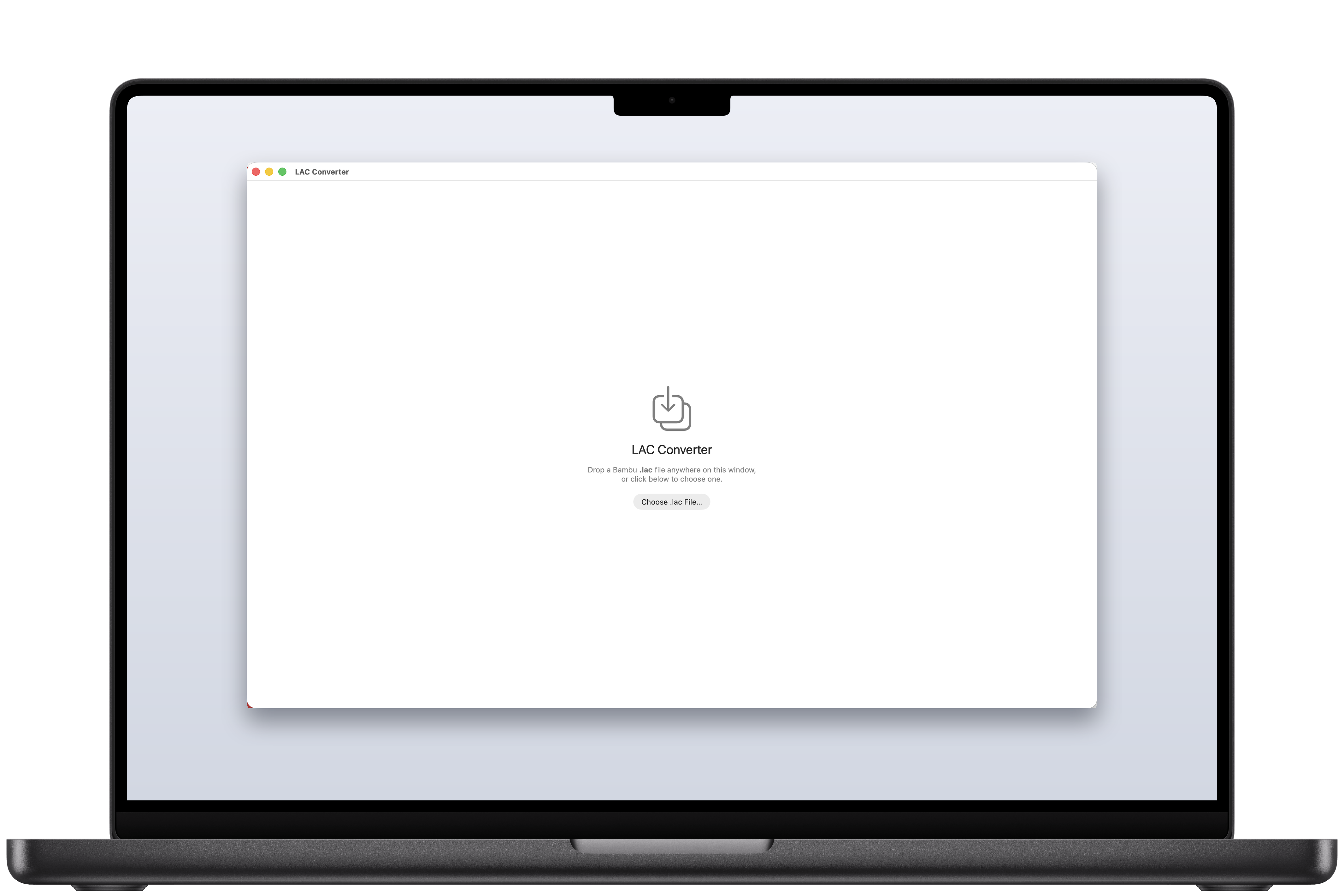
Drop a .lac onto the window. SVG appears in the preview, layer counts and material show in the sidebar, save when ready. No projects, no logins.
The output is plain SVG — open it in xTool, WeCreate, Creality Falcon, LightBurn, Glowforge, Inkscape, Illustrator, or anything else that reads vectors or preps files for laser cutting.
A plain-text .txt next to your .svg with the material,
machine, and Bambu's recommended laser settings broken out per layer so it
lines up with what's in your cutter's software.
LAC Converter — Settings Summary
================================

Source file: Chat+Puzzle.lac
Material:    3mm Basswood Plywood  (B-YA-A-A-X0)
Vendor:      BambuLab
Thickness:   3 mm
Category:    Wood
Machine:     Bambu Lab H2C-40W
Canvas:      Canvas 1
Bounds:      158.542 × 232.827 mm

Layer settings (apply these in xTool / LightBurn after import)
--------------------------------------------------------------

Cut  (#FF0000, 41 objects)
  • LaserLineCut:
      Power:  100%
      Speed:  16 mm/s
      Passes: 1
      Air assist: on

Engrave-Image  (—, 1 object)
  • LaserImageEngrave:
      Power:  55%
      Speed:  450 mm/s
      Passes: 1
      Air assist: on
      Scan interval: 0.1 mm

Generated by LAC Converter — these are Bambu's recommended
settings for this material. Verify on a test piece before
running the full job.LACConverter.dmg. macOS will ask "Are you sure you want to open it?" because it was downloaded from the internet — click Open. Finder then opens a window with the app icon
next to a shortcut to your Applications folder.LACConverter onto the Applications folder. That copies the app into /Applications.This build is unsigned — I'm distributing it for free testing before committing to the $99/yr Apple Developer Program. The "approve once" step is gone the moment I notarize it.